
Themes
The Themes tab lets you manage all themes in your Shopify store. You can switch between themes, clone your live theme, add new ones, and control automatic syncing to Shopify.
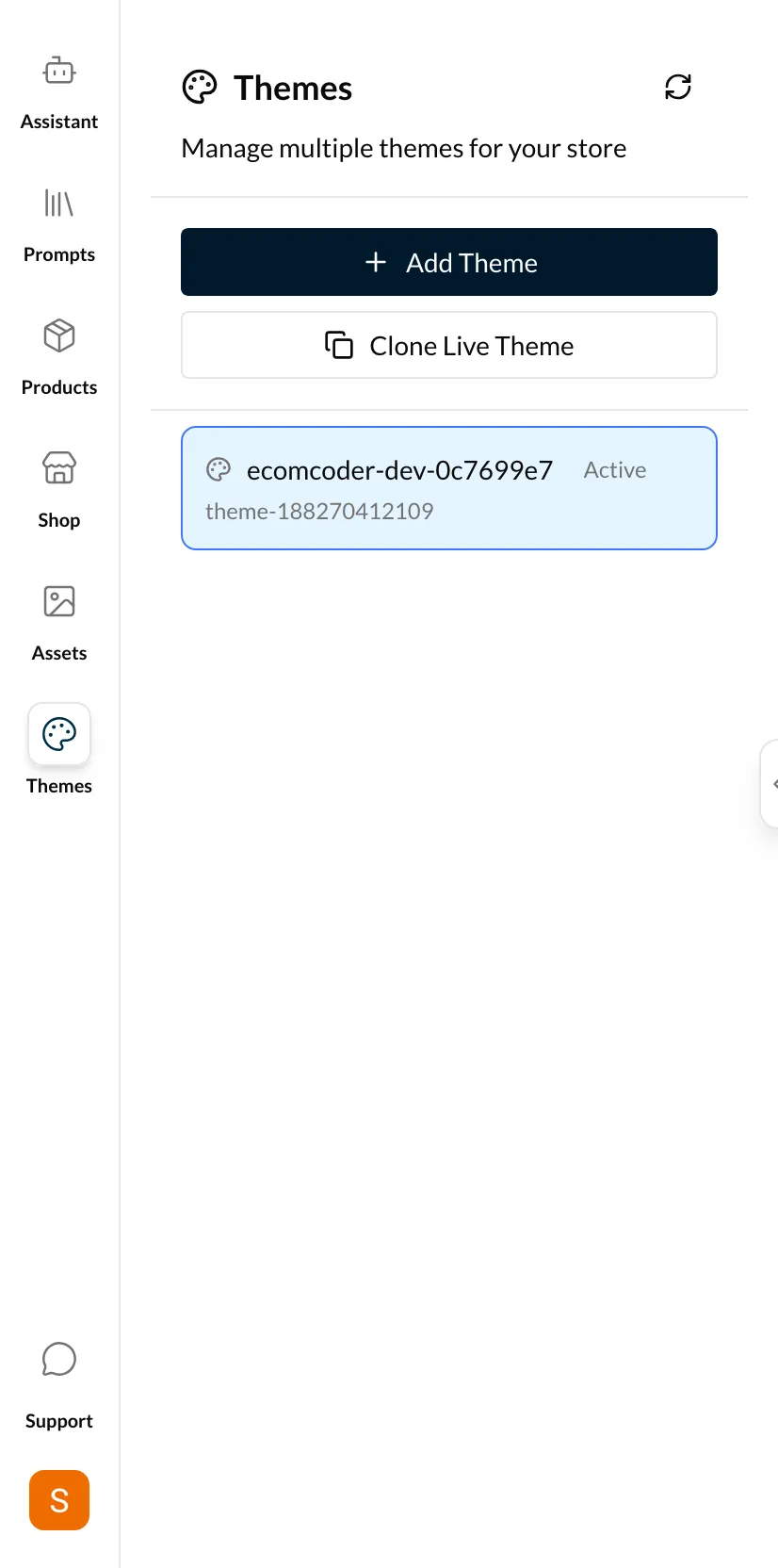
Theme List
Your themes are displayed as cards showing:
- Theme name
- Status badge — "Active" (your live theme) or "Draft"
- Last updated timestamp
The currently selected development theme is highlighted.
Add Theme
Click Add Theme to pull an existing theme from your Shopify account into EcomCoder. This is useful when you want to work on a theme that was uploaded directly to Shopify.
Clone Live Theme
Click Clone Live Theme to create a safe development copy of your current live theme. This is the recommended way to start making changes — you get an exact copy without any risk to your published store.
Tip
Always clone your live theme before making changes. This way you can experiment freely and only publish when you're satisfied.
Switch Themes
Click on any theme card to switch your development environment to that theme. When you switch:
- The dev server restarts with the new theme
- The live preview updates to show the new theme
- The AI assistant works with the new theme's files
Restart required
Switching themes restarts the development server, which takes a few seconds. Your chat history is preserved.
Theme Sync
Theme Sync automatically pushes your code changes to Shopify as you make them. This is useful when you want collaborators to see changes in the Shopify admin in real time.
- Toggle on — Changes sync to Shopify automatically
- Toggle off — Changes stay local until you publish manually
Plan-gated feature
Theme Sync is available on certain plans. Check your plan details for availability.
Sync status is per-theme, so you can have sync enabled for one theme and disabled for another.