
Live Preview
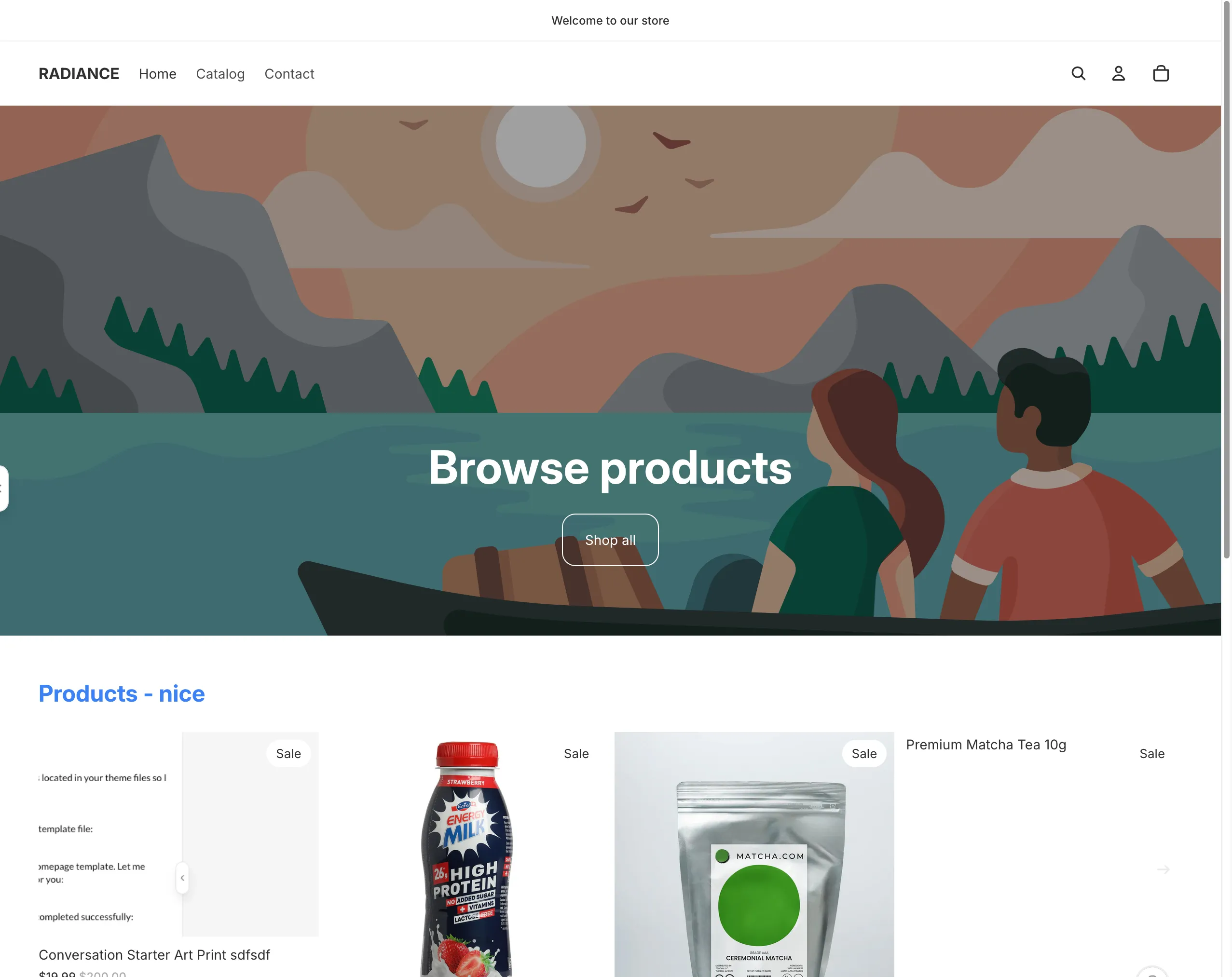
The live preview is the right panel of the dashboard. It displays your store in an iframe that updates automatically as the AI applies changes.
Desktop & Mobile Toggle
Use the device toggle in the header bar to switch between views:
- Desktop — Full-width preview
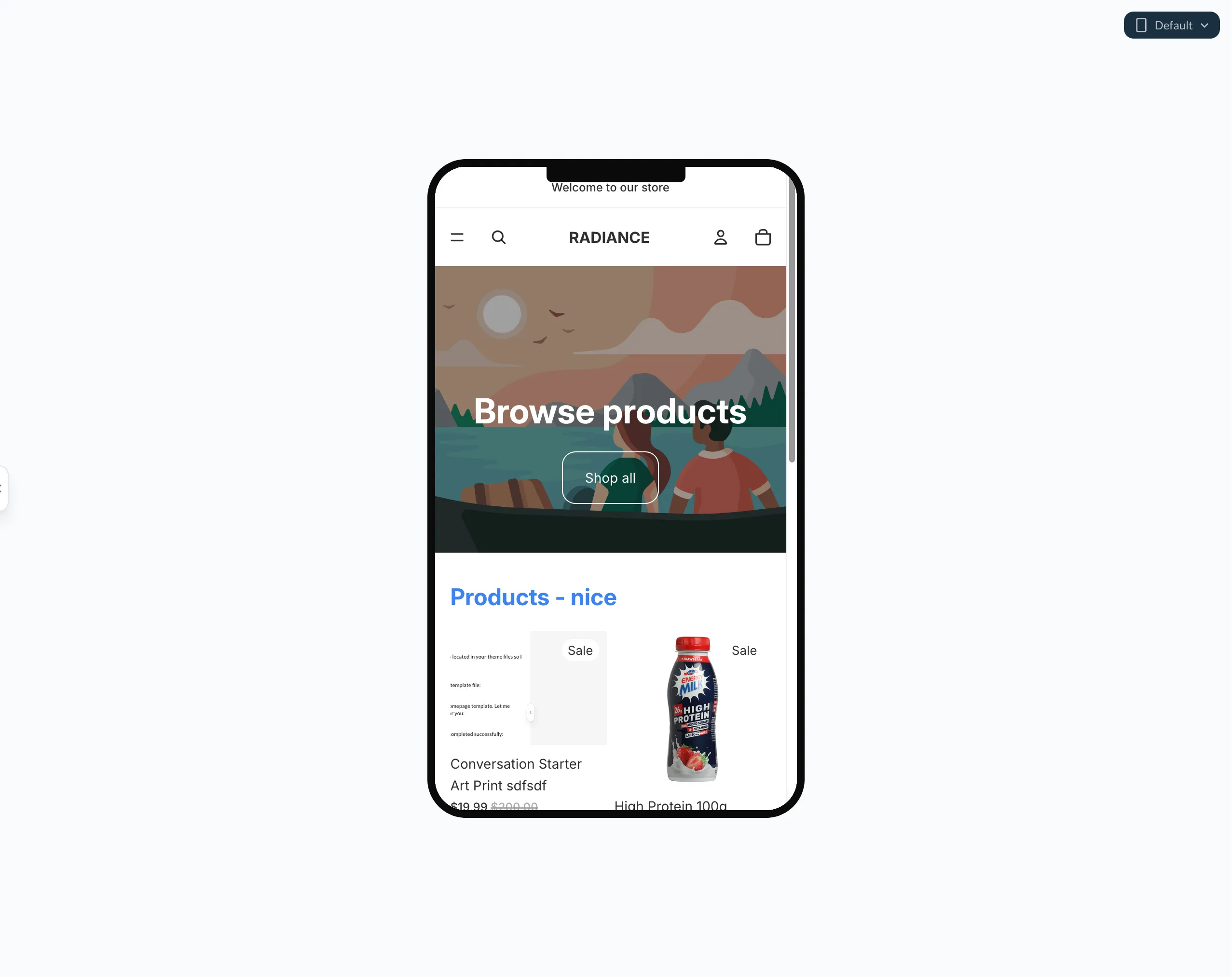
- Mobile — Choose from common phone sizes:
- 375px (iPhone SE / standard)
- 320px (small phones)
- 414px (iPhone Plus / larger)
- 430px (iPhone Pro Max)
The mobile preview centers in the panel with a device frame outline so you can see exactly how your store looks on different screen sizes.
URL Tracking
The header bar shows the current URL of the preview page. As you navigate within the store preview, the URL updates in real time. You can also type a URL directly to jump to a specific page.
Page Pinning
If you want the AI to focus on a specific page, you can pin the current preview URL. When pinned:
- The preview stays on that page even when the AI applies changes
- The AI uses the pinned page as context for its edits
- Unpin to resume normal navigation
Element Picker
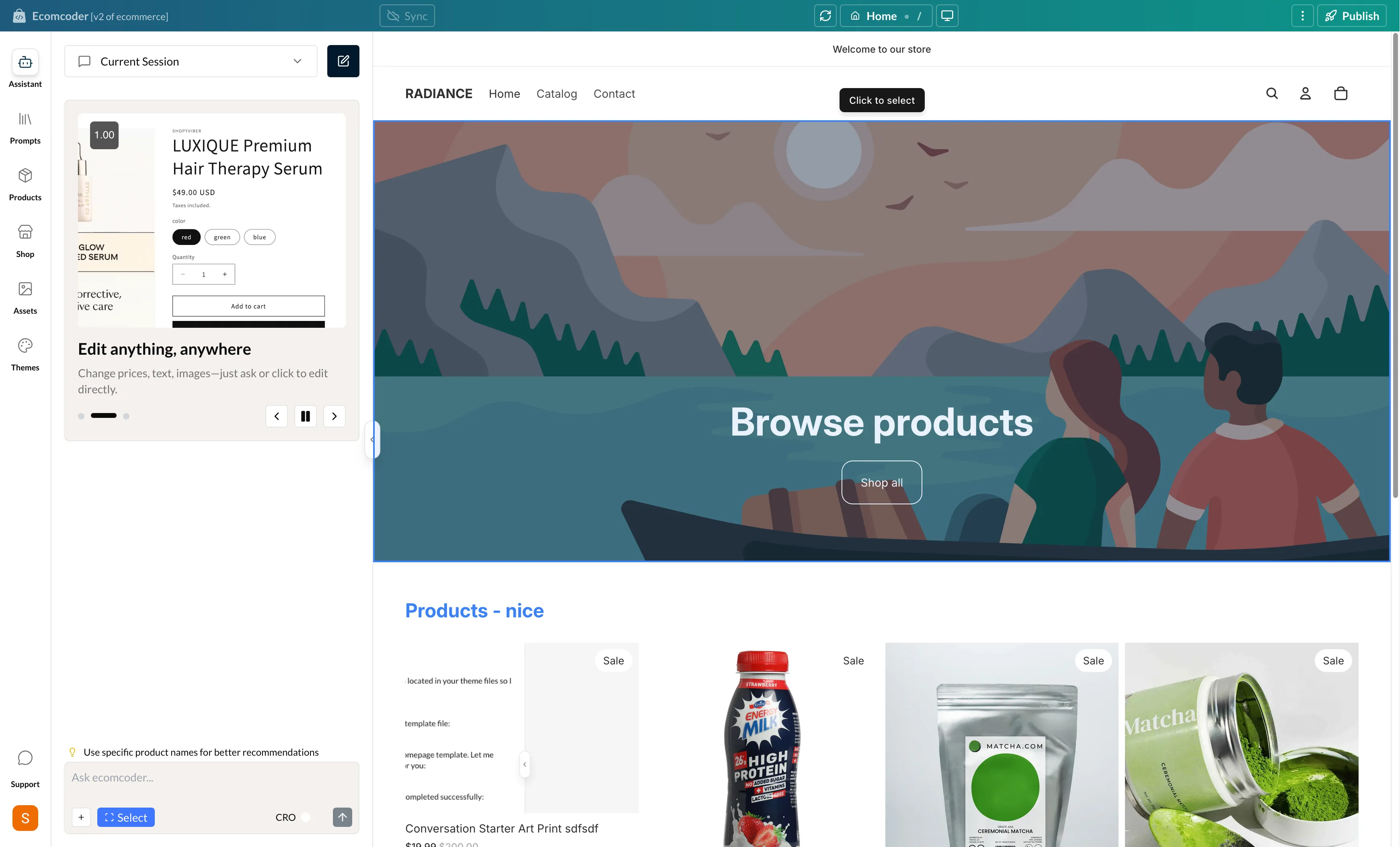
The Element Picker lets you click on any element in the preview to target it for AI edits.
How it works
- Activate the Element Picker from the toolbar
- Hover over elements in the preview — they highlight with an outline
- Click an element to select it
- The AI receives the CSS selector and context about the selected element
- Describe what you want to change, and the AI targets that specific element
Tip
Use the Element Picker when you want to edit a specific element but aren't sure what it's called in the theme code. Just click it and describe the change.
Special States
Password Required
If your store has password protection enabled, the preview will show the password page. You can enter the password directly in the preview to access your store.
Theme Limit Reached
Shopify limits the number of themes per store. If you've hit the limit, EcomCoder will show a message with instructions for removing unused themes.