
Connecting Your Store
This guide walks you through connecting your Shopify store to EcomCoder. The entire process takes less than 5 minutes.
Safe by default
When you connect, EcomCoder duplicates your live theme into a development copy. Your published store remains completely untouched until you choose to publish.
Step 1: Enter Your Store URL
Enter your Shopify Store URL in the setup form. This is the URL ending in .myshopify.com.
Where do I find my Store URL?
- Go to your Shopify Admin Dashboard
- Navigate to Settings > Domains
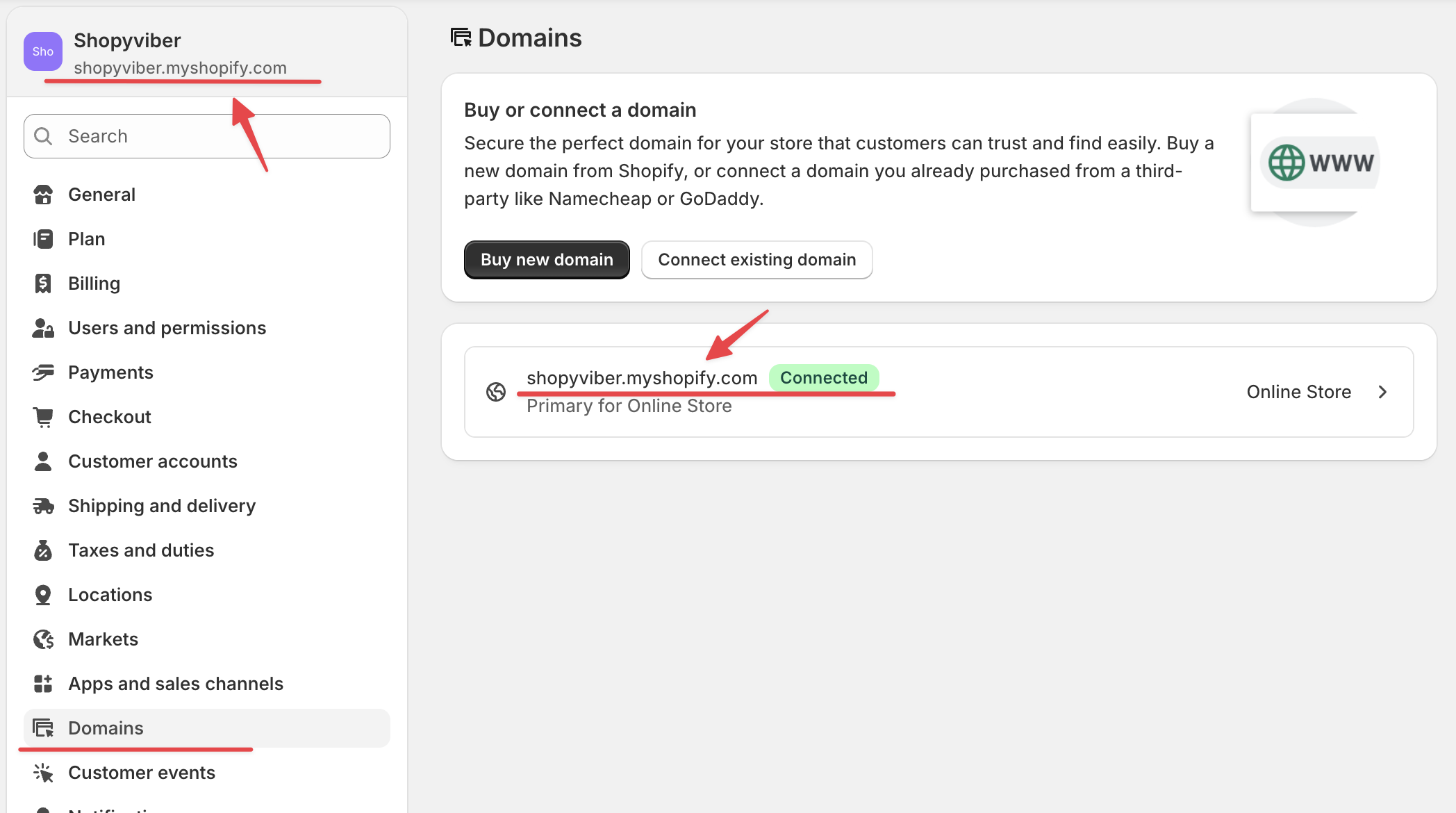
- Copy your Shopify URL (e.g.
yourstore.myshopify.com) - Paste it into the setup form
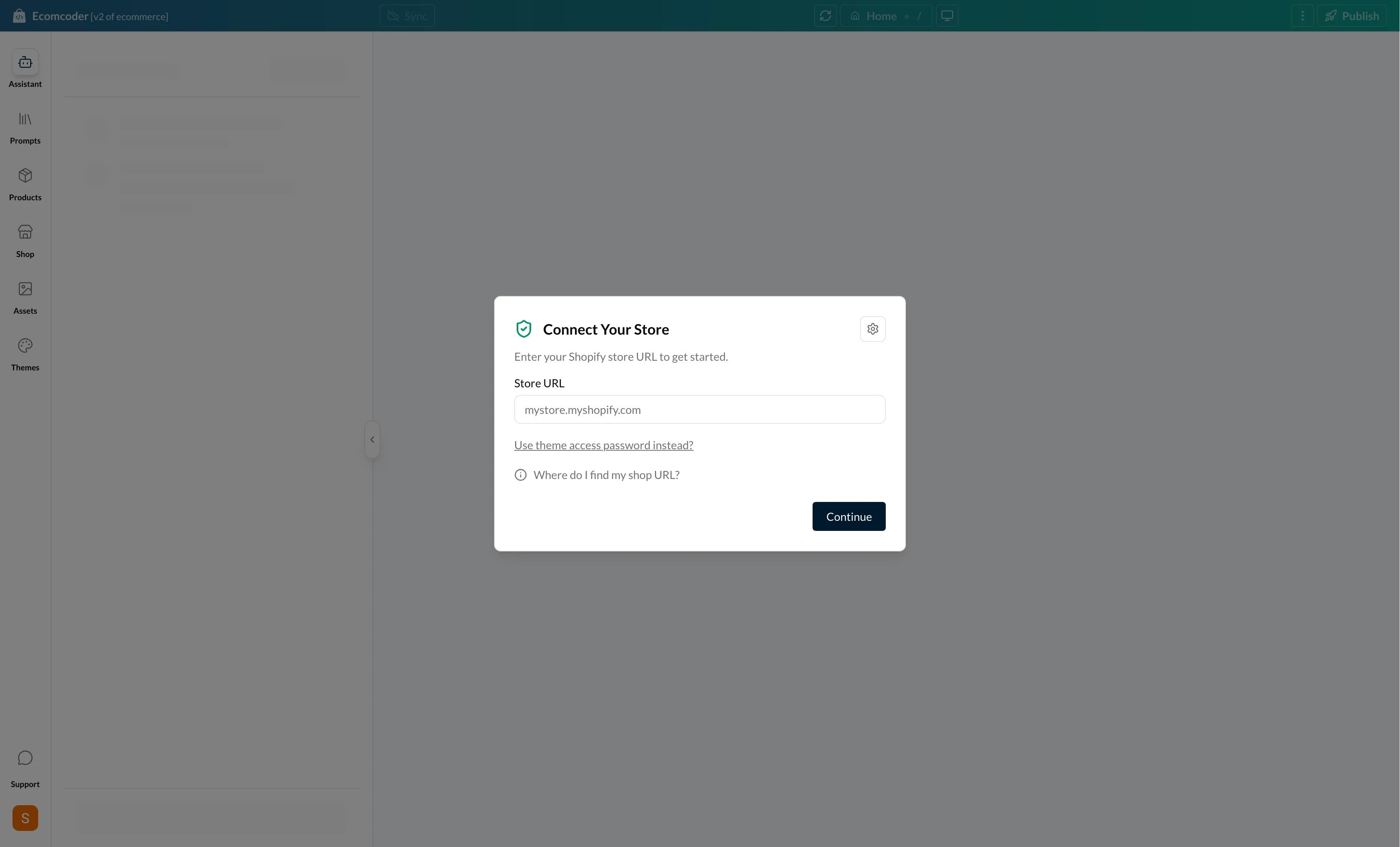
Step 2: Authorize with Shopify
After entering your store URL, EcomCoder uses Shopify OAuth to securely connect to your store:
- EcomCoder displays a verification code on screen
- A Shopify authorization popup opens automatically
- Verify the code shown in the popup matches the one on screen
- Click Install in the Shopify popup
- The setup continues automatically once you approve
Why the verification code?
The verification code ensures you're authorizing the correct connection. Always confirm the codes match before clicking Install.
Step 3: Environment Setup
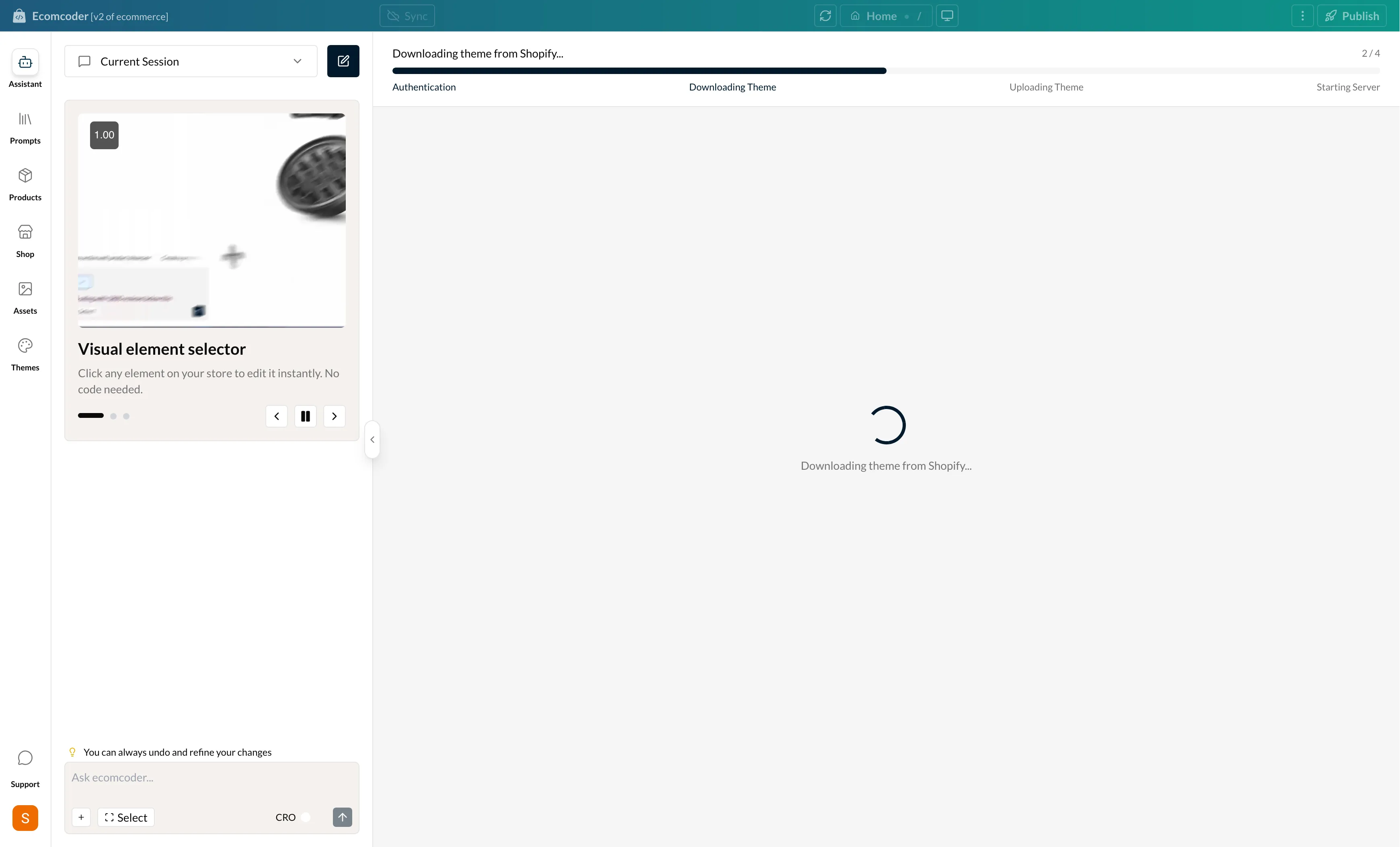
After authorization, EcomCoder sets up your development environment. You'll see a progress bar with four stages:
- Connecting — Establishing connection to your store
- Cloning theme — Duplicating your live theme into a development copy
- Setting up environment — Preparing the development server
- Ready — Your environment is ready to use
This usually takes 30–60 seconds.
Alternative: Theme Access Password
If you prefer not to use OAuth, you can connect using a theme access password instead:
- On the setup form, click "Use theme access password instead?"
- Paste your Shopify theme access password (starts with
shptka_) - Click Connect
How to get a theme access password
In your Shopify Admin, go to Online Store > Themes, click the three dots on your active theme, and select Edit code. If Theme Access is enabled, you can generate a password from Settings > Apps and sales channels > Theme Access.
Troubleshooting
Wrong Shopify account
If the OAuth popup opens with the wrong account, log out of Shopify first and try again.
Store unavailable
Make sure you're entering the .myshopify.com URL, not a custom domain. The store must be on an active Shopify plan.
Setup failed
If environment setup fails, try refreshing the page and connecting again. If the problem persists, contact support@ecomcoder.com.
Security & Privacy
Your Store is Safe
- EcomCoder can only access your store's theme code and product structure
- It cannot view or modify your orders, customers, finances, or analytics
- All changes are made to a duplicate theme — your live store stays safe
- You have full control over what gets published
For a full list of permissions, see the Permissions page.