
Assets
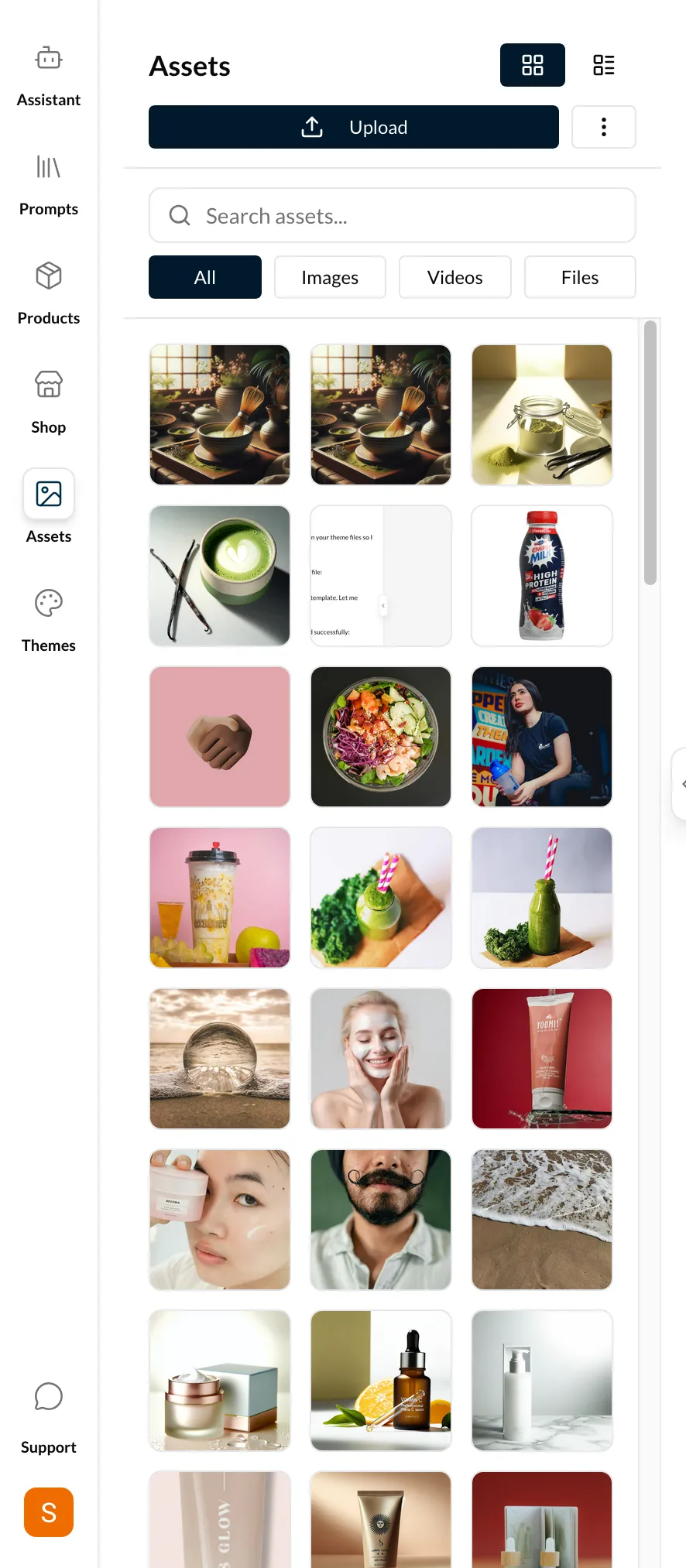
The Assets tab lets you upload, browse, and manage all media files in your Shopify store — including images, videos, and other file types.
View Modes
Toggle between two view modes:
- Grid — Thumbnail view for quick visual browsing
- List — Compact list with file names, types, and sizes
Search & Filter
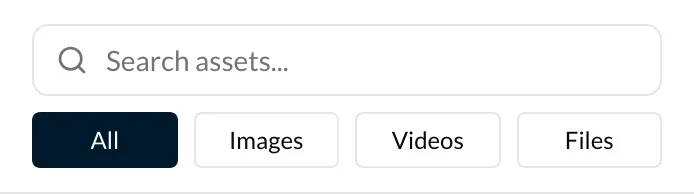
- Search — Type a file name to find specific assets
- Type Filter — Filter by:
- Images — JPG, PNG, GIF, SVG, WebP
- Videos — MP4, WebM
- Files — PDF, fonts, and other file types
Product-Specific Assets
When you're viewing a product page in the live preview, the Assets tab can show assets specific to that product. This makes it easy to manage product images without scrolling through all store assets.
Uploading Files
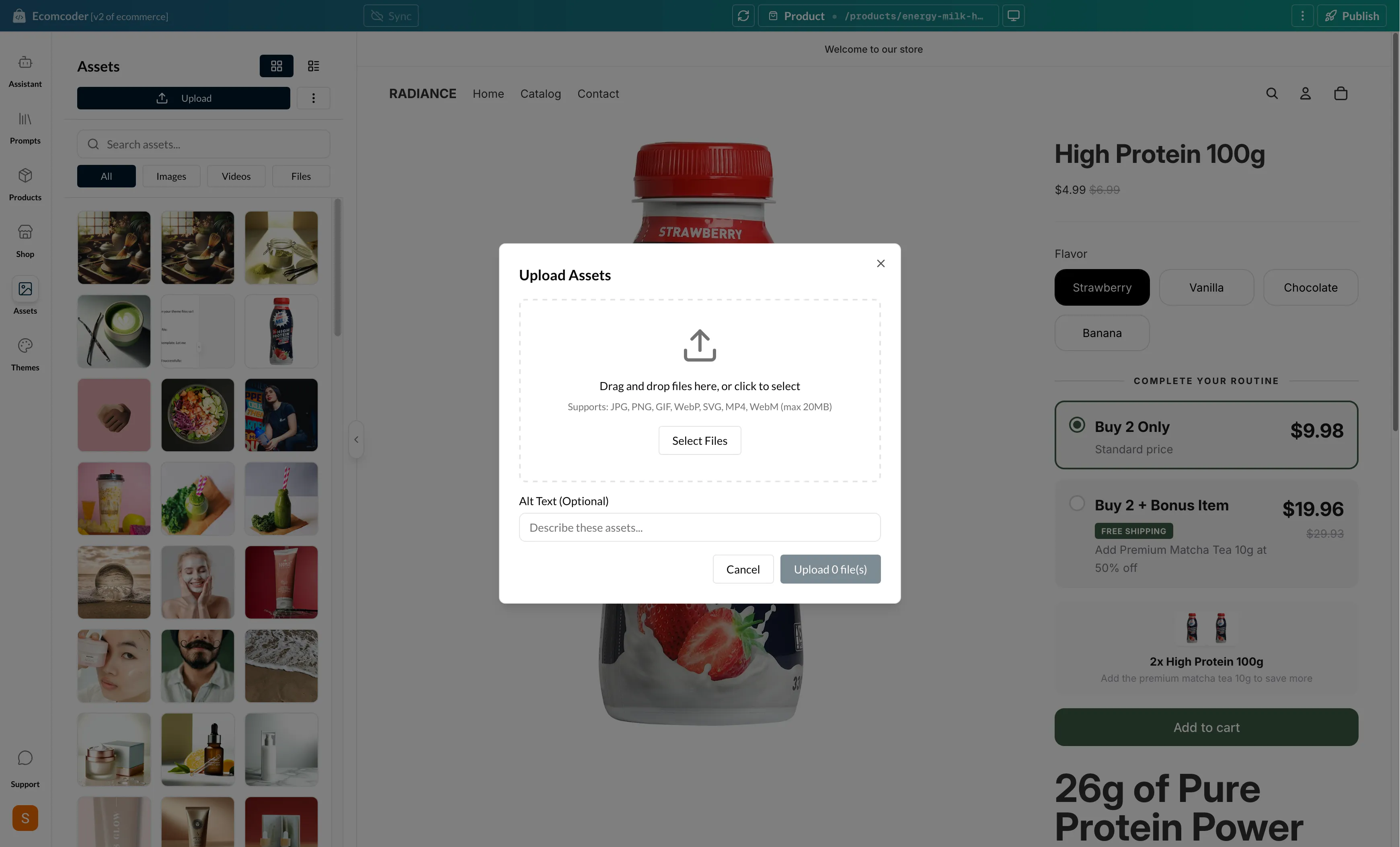
Drag and Drop
Drag files from your computer directly into the Assets panel. Multiple files can be uploaded at once.
File Picker
Click the Upload button to open a file picker and select files from your computer.
Stock Image Search
Need an image but don't have one? Use the built-in stock image search to find free, high-quality images:
- Click the Stock Images button
- Search for a keyword (e.g., "coffee", "fashion", "landscape")
- Browse the results
- Click an image to add it to your store assets
Asset Details
Click any asset to open the details panel, which shows:
- File name and type
- Dimensions (for images)
- File size
- Direct URL for use in templates
You can copy the asset URL for use in Liquid templates or custom code.