
AI Assistant
The AI Assistant is the core of EcomCoder. It's a chat interface where you describe changes in plain English, and the AI writes Liquid, CSS, and HTML code to apply them to your store.
Starting a Conversation
Type a message describing what you want to change. For example:
- "Make the header background dark navy blue"
- "Add a sticky add-to-cart button on the product page"
- "Change the font to Montserrat for all headings"
- "Add a countdown timer banner at the top of the page"
- "Remove the sidebar from the collection page"
The AI analyzes your request, examines the relevant theme files, and applies the changes automatically.
How AI Edits Work
When you send a message, the AI follows this process:
- Understand — Parses your request and identifies what needs to change
- Analyze — Reads the relevant Liquid templates, CSS, and assets in your theme
- Generate — Writes the code changes (new files, edits, or deletions)
- Apply — Saves the changes to your development theme
- Preview — The live preview updates to show the result
You can see each step happening in the chat as the AI works.
Chat Input Tools
The toolbar below the text input gives you additional controls:
Image Upload
Click the + button to attach images to your message. You can upload up to 8 images per message. This is useful for:
- Sharing screenshots of designs you want to replicate
- Pointing out specific UI issues
- Providing visual reference for the AI
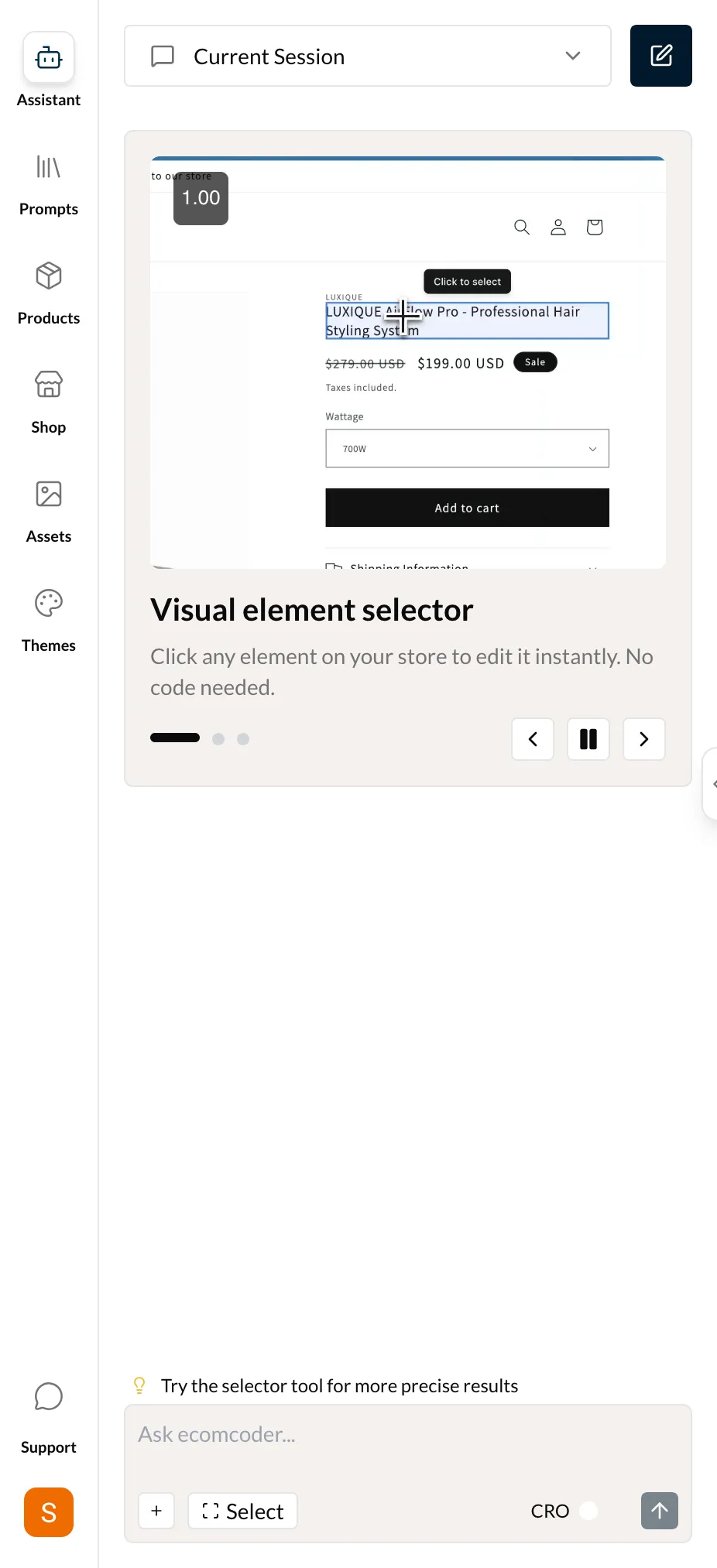
Element Selector
Click the Select button to activate the Element Picker. This lets you click on any element in the live preview to select it. Once selected, the element appears as a badge above the input field, giving the AI precise context about which part of the page you want to modify.
For more details on the Element Picker, see the Live Preview page.
CRO Mode
Toggle the CRO button to enable Conversion Rate Optimization mode. When active, the AI automatically applies CRO best practices to every response — optimizing for higher conversion rates, better user experience, and proven e-commerce patterns.
Abort
While the AI is generating a response, an abort button appears. Click it to stop the current generation immediately. This is useful if you realize you want to rephrase your request or if the AI is heading in the wrong direction.
Message Actions
Hover over any of your past messages to reveal action buttons:
- Copy — Copy the message text to your clipboard
- Edit from Here — Roll back to that message's checkpoint, restoring your theme code to the state it was in at that point. See Session Rollback for full details.
Chat Sessions
New Session
Click the New Session button to start a fresh conversation. This clears the chat history and gives the AI a clean context.
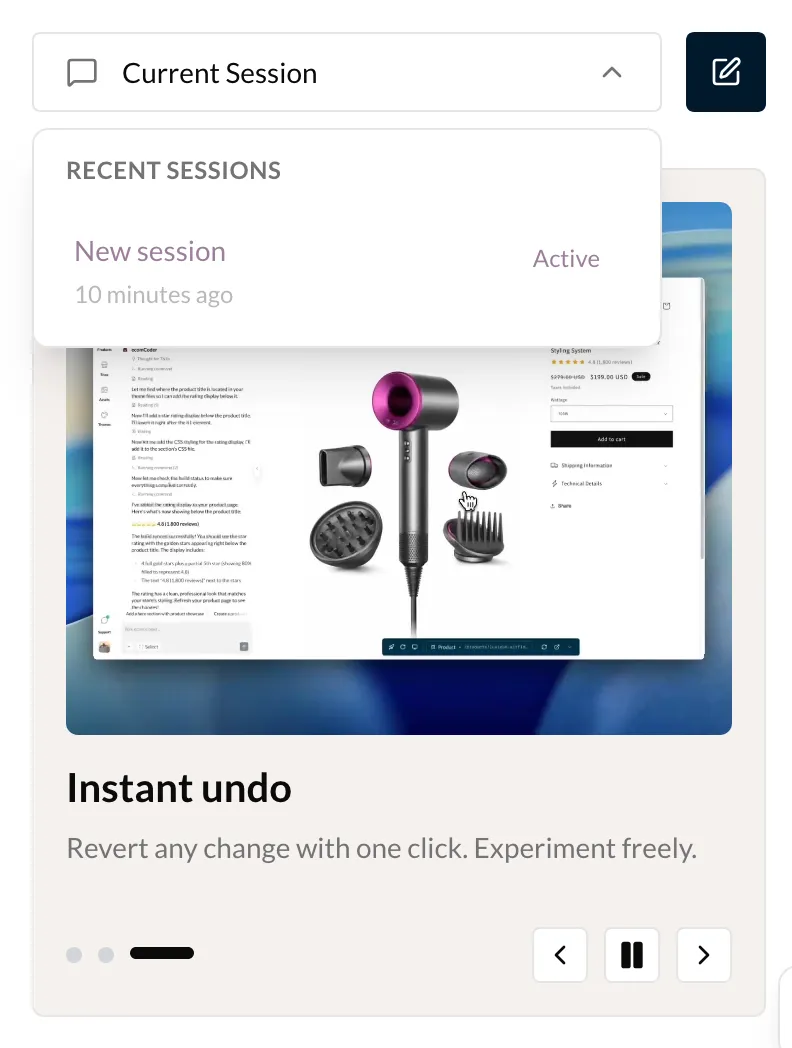
Session Switcher
If you have multiple sessions, use the session switcher in the sidebar to jump between them. Each session maintains its own conversation history.
Session History
Past sessions are saved and accessible from the session list. You can revisit earlier conversations to see what changes were made.
Session Warnings
As your conversation grows, EcomCoder displays banners recommending you start a new session to keep the AI performing at its best:
- At 15 messages — An info banner appears suggesting you consider starting a new session
- At 25 messages — A warning banner appears with a stronger recommendation
- At 35 messages — A critical banner appears and stays visible at all times
All banners include a "Start New Session" button for quick action.
Why start a new session?
The AI performs best with focused, shorter conversations. Longer sessions can reduce response quality as context builds up. Starting fresh gives the AI a clean slate while your previous sessions remain accessible in the session list.
Context Usage
The AI has a limited context window for each session. As your conversation grows, you'll see a context usage indicator that shows how much capacity remains.
Context limit
When the context limit is approaching, consider starting a new session. The AI performs best with a focused conversation rather than a very long one.
Tips for Best Results
- Be specific — "Make the Add to Cart button larger and green" works better than "improve the product page"
- Use the Element Picker — Click the element you want to change, then describe the edit. This gives the AI precise context.
- Iterate — If the first result isn't perfect, describe what to adjust: "Make it a bit darker" or "Move it 20px to the left"
- One change at a time — Complex requests work best when broken into steps
- Reference pages — Navigate to the page you want to edit before chatting, so the AI knows which template to modify