
Prompt Library
The Prompt Library is a collection of pre-built prompts organized into 26 categories. Each prompt is a ready-to-use instruction that tells the AI exactly what to do — so you can make changes without writing your own descriptions.
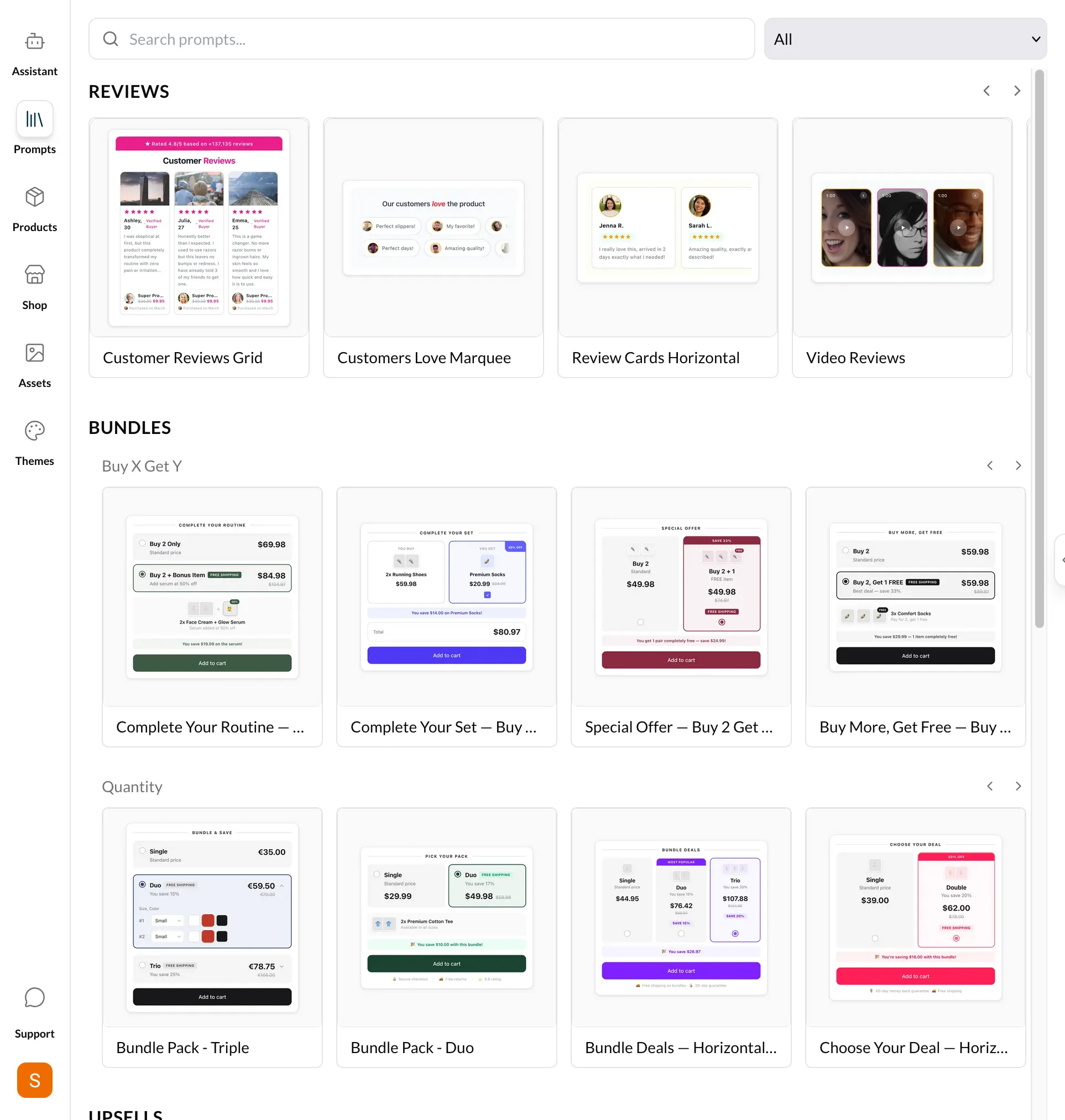
Browsing Prompts
Open the Prompts tab in the navigation sidebar to access the library.
- Search — Type in the search bar to filter prompts by keyword
- Category Filter — Click a category to show only prompts in that group
- All Prompts — Click "All" to see the complete list
Categories
| Category | Description |
|---|---|
| Header | Navigation bars, menus, announcements |
| Hero | Hero banners, sliders, full-width sections |
| Product Page | Product layout, gallery, descriptions |
| Collection | Collection grids, filters, sorting |
| Footer | Footer layout, links, newsletter |
| Typography | Fonts, sizes, text styling |
| Colors | Color schemes, backgrounds, gradients |
| Buttons | Button styles, hover effects, CTAs |
| Forms | Contact forms, email signup, inputs |
| Icons | Icon sets, social icons, feature icons |
| Spacing | Margins, padding, section spacing |
| Images | Image sizing, lazy loading, galleries |
| Animations | Scroll effects, transitions, hover animations |
| Cart | Cart drawer, cart page, mini cart |
| Checkout | Checkout styling and trust signals |
| Trust Signals | Reviews, badges, guarantees |
| Social Proof | Testimonials, customer photos, stats |
| SEO | Meta tags, structured data, speed |
| Mobile | Responsive tweaks, mobile-specific layout |
| Accessibility | ARIA labels, focus states, contrast |
| Performance | Speed optimization, lazy loading |
| Blog | Blog layout, post cards, archives |
| Custom Sections | New sections, custom templates |
| Metafields | Display metafield data in templates |
| Popup | Popups, modals, slide-ins |
| Misc | Other customizations |
Using a Prompt
- Browse or search for a prompt
- Click the prompt card
- The prompt is sent to the AI Assistant automatically
- The AI analyzes your theme and applies the changes
- Check the live preview for the result
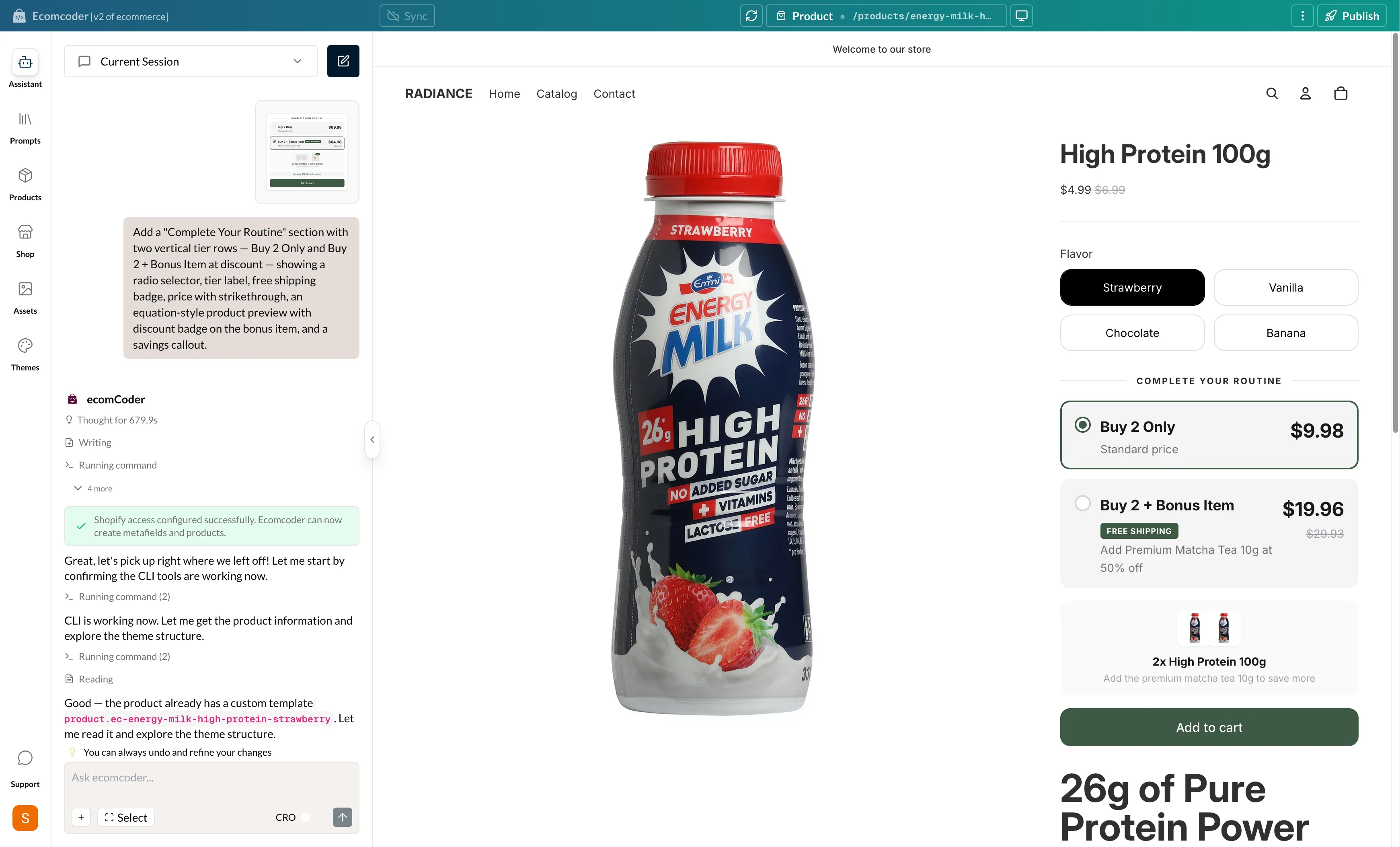
Preview Before Using
Click the expand icon on a prompt card to open a detail modal. This shows:
- Description — What the prompt does
- Preview Image — An example of the expected result (when available)
This lets you understand exactly what a prompt will do before applying it.
Product-Specific Prompts
Some prompts are designed to work only on product pages. These prompts appear disabled (grayed out) unless you're viewing a product page in the live preview.
To use a product-specific prompt:
- Navigate to a product page in the preview
- Open the Prompt Library
- Product-specific prompts are now enabled and clickable
Navigate first
If a prompt is grayed out, navigate to the relevant page type in the preview (e.g., a product page) and it will become available.