Publishing
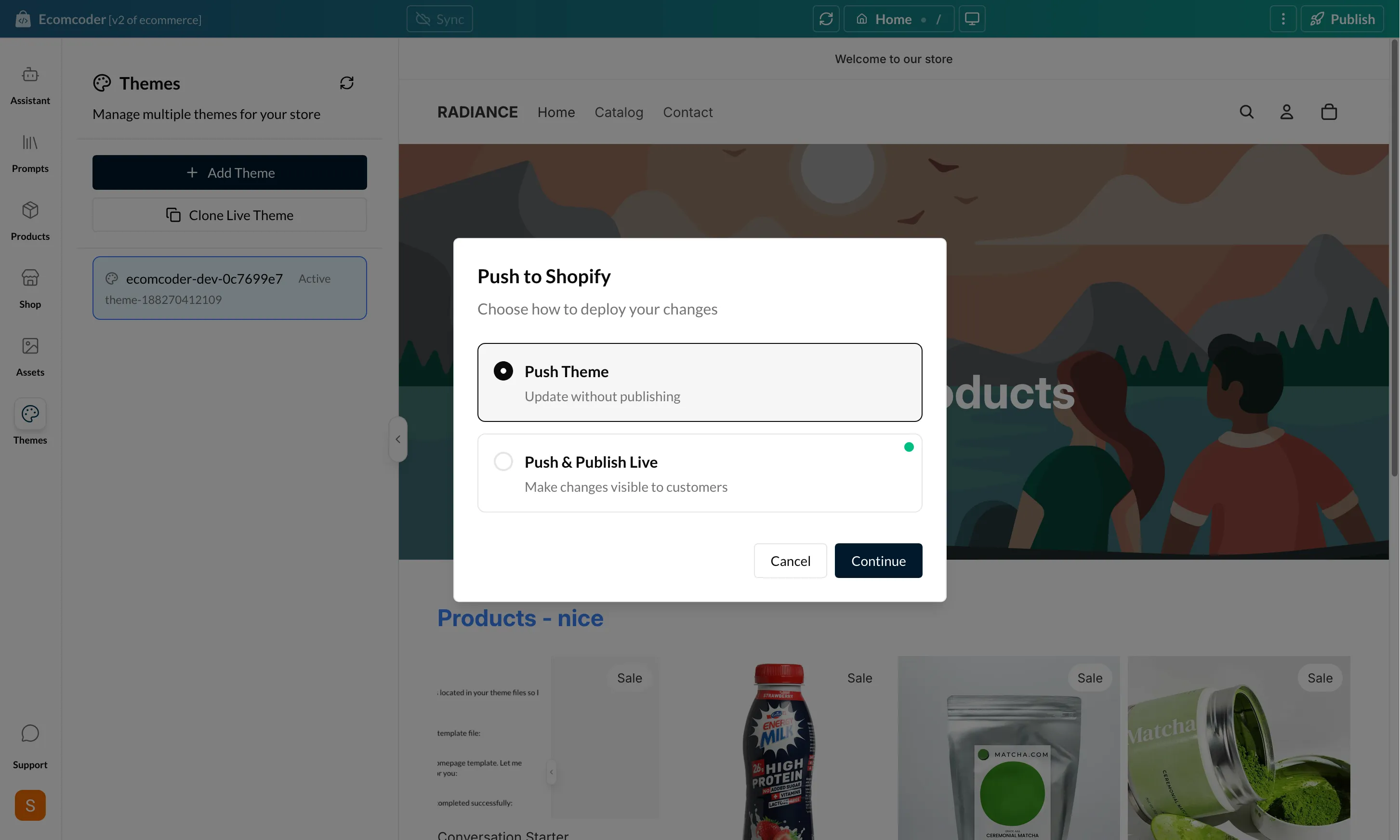
When you're ready to move your changes to Shopify, use the Publish button in the header bar. You have two options: push as a draft theme, or publish live immediately.
Push Theme (Draft)
Click Publish and select Push as Draft. This uploads your development theme to Shopify as a draft theme. The draft:
- Is visible in the Shopify admin under Online Store > Themes
- Can be previewed in Shopify using the preview link
- Does not affect your live store
This is the safest way to move changes to Shopify — you can review everything in the Shopify admin before going live.
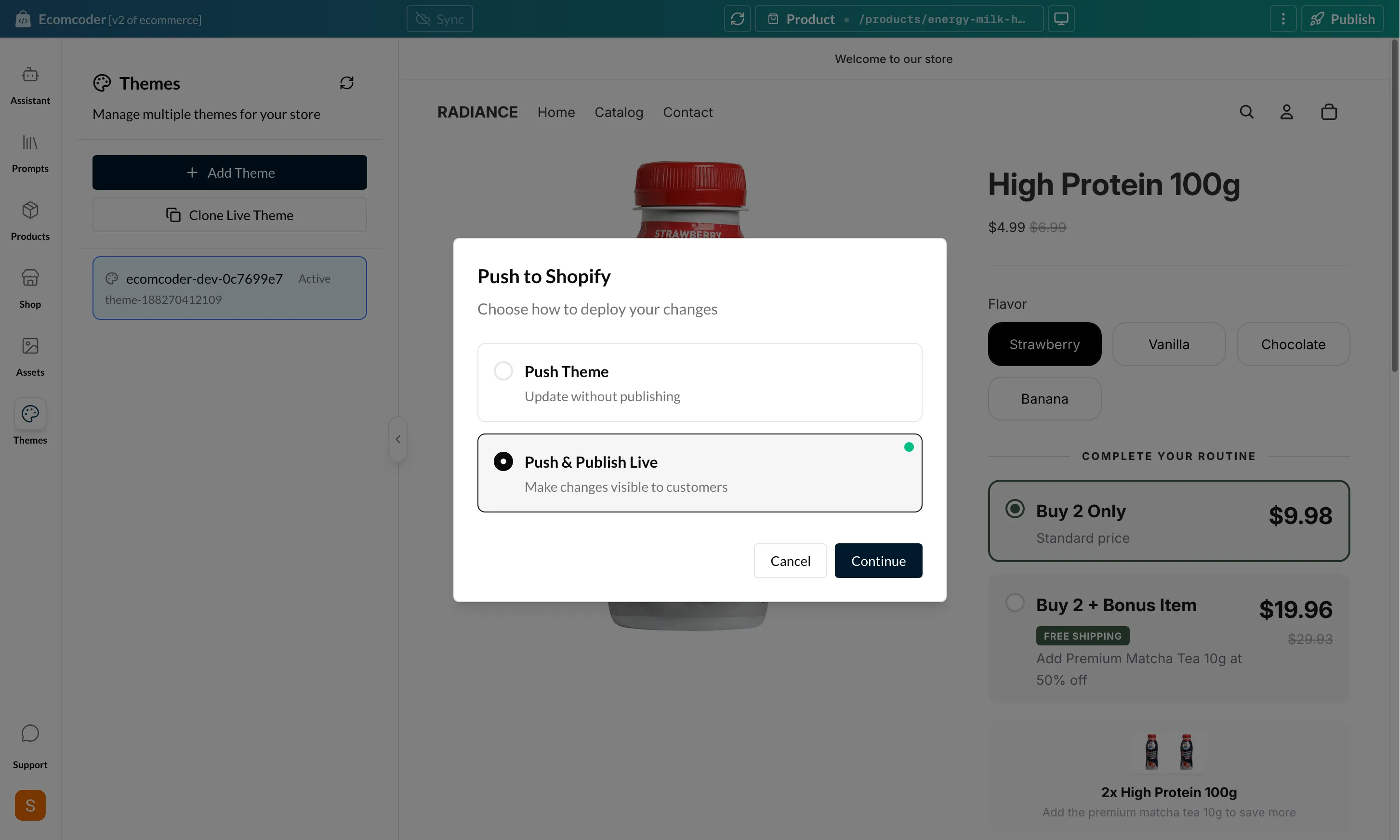
Push & Publish Live
Click Publish and select Push & Publish Live. This uploads your theme and immediately makes it the active theme on your store.
This goes live immediately
Publishing live replaces your current active theme. Make sure you've reviewed all changes in the preview before publishing.
Live Theme Warning
When you select Push & Publish Live, a confirmation dialog appears warning you that:
- The current live theme will be replaced
- Changes will be visible to all store visitors immediately
- This action cannot be undone from within EcomCoder (you'd need to switch themes in Shopify)
You must confirm before the publish proceeds.
Plan Restrictions
Some plans restrict access to publishing features:
- Push as Draft — Available on all plans
- Push & Publish Live — May require a higher-tier plan
Check your plan details in the profile menu to see which publishing options are available.